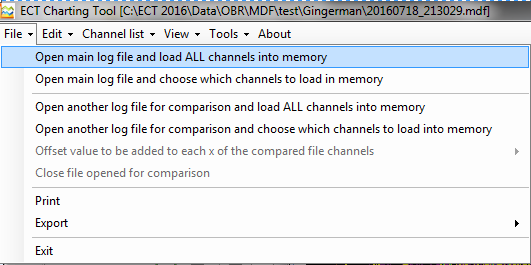
File in the main menu gives access to:
-
Open main log file and load ALL channels into memory, locate your data logger file and open it in the Chart Tool.
-
Open main log file and choose which channels to load into memory, locate your data logger file and open it in the Chart Tool.
-
Open another log file for comparison and load ALL channels into memory; you can compare 2 files in the Chart Tool.
-
Open another log file for comparison and choose which channels to load into memory; you can compare 2 files in the Chart Tool.
-
Offset value to be added to each of the compared file channels; synchronise two data sets.
-
Close file added for comparison, close the 2nd file opened.
-
Print, print the current layout.
-
Export, export the current view as a picture file.
-
Exit, close the Charting Tool.
Edit in the main menu gives access to:
-
Channel Manager, open a window to edit channel properties, load the channels that were left out in the first load, create math channels..
-
Convert to constant sampling rate, only used with EBL and ETL files. Makes the time intervals between one acquisition and the next equal
- Convert to maximum sampling rate, only used with EBL and ETL files. It redefines the samples of all channels using the frequency of the channel acquired at the highest frequency and makes the time intervals between one acquisition and the next equal.
Options in the main menu gives access to:
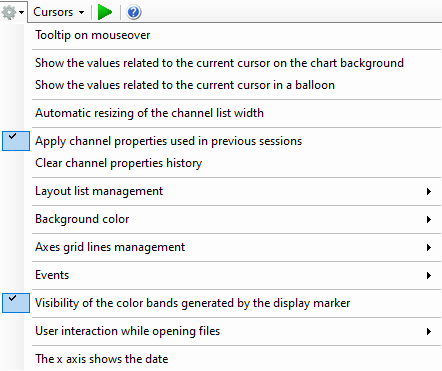
Tool tip on mouse-over; will show help topics in various sections of the tool.
Show the values related to the current cursor on the chart background and Show the values related to the current cursor in a balloon allow you to read current values directly in the graphics area.
Automatic resizing of the channel list width
If activated, it allows resizing the width of the channel list based on the contents
Apply channel properties defined in previous sessions.
If activated, it allows you to automatically save the channel properties (minimum displayed value, maximum displayed value, color) on a settings file. If a data file containing channels with the same name is subsequently loaded, the channel properties stored in the data file will be overwritten by those stored in the settings file during previous sessions.
Background colour, select between white or black background.
Curors in the main menu gives access to:
About in the main menu gives access to:
Information about the ECT tool version and displays the software license agreement.
The command bar under the main menu contains the following commands:
-
Expand channels, show full channel list.
-
Compact channels, show only channels loaded in current display.
-
Expand details, show all channel data option.
-
Compact details, show minimal channel data.