INSTALLING FILES DOWNLOADED FROM EFI TECHNOLOGY SITE
The EFISoftwareInstaller_[DATE] .exe setup file can be downloaded from the EFI Technology site.
Run the executable file and follow the on-screen instructions during the completion of the installation.
INSTALLATION DETAILS
By launching EFISoftwareInstaller_[DATE].exe and following the suggested procedure step by step, four separate software will be installed:
-
EFI Technology Drivers. The Windows driver required for the functioning of the EFI communication interfaces. The installation of this software is essential for all functions involving communication with ECT devices.
-
EFI communication server. The software that interfaces with the driver and provides the communication primitives to other software such as ECT. The installation of this software is essential for all functions involving communication with ECT devices.
-
PseudoProgrammer–Programmer for EFI ECU. The software for the programming of the devices with a kernel of the latest generation. It can operate in stand-alone or be invoked as a tool by ECT. The installation of this software is essential if you intend to use ECT for programming devices based on the latest kernel,
-
ECT DN. The object of this software in this document
- ECU Logger. Optional software used to download data acquired from EFI panels designed to manage data acquisition.
Install the programme
Launch EFISoftwareInstaller_[DATE].exe . The following window will appear
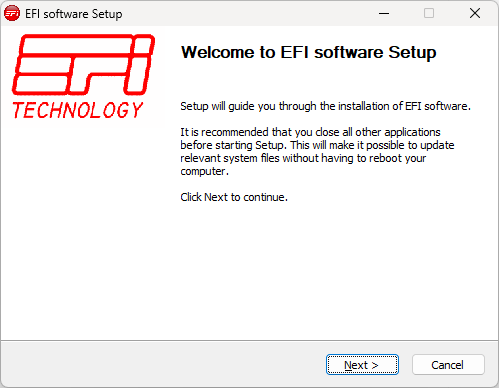
Click Next to continue the installation.
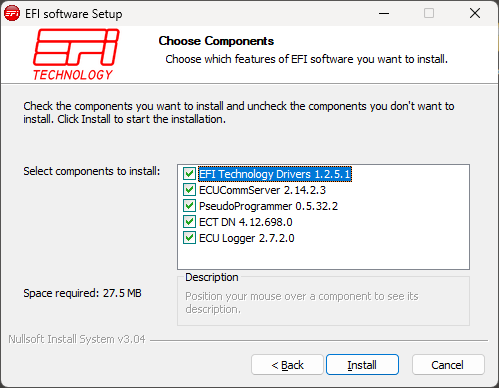
Afterwards the user is required to choose the software to be installed. Each element of the list represents the software that will be installed and the correspondent version. Tick all the white boxes to install the full version of ECT Modular DN. Click Next to continue the installation.
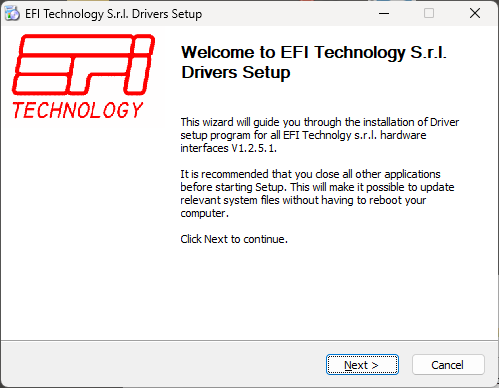
EFI Drivers: the first software installed is the EFI Drivers. Click Next.
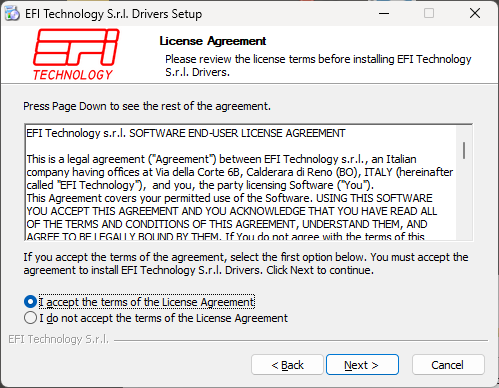
Accept the license conditions and then press Next
Select the driver you want to install then press Install
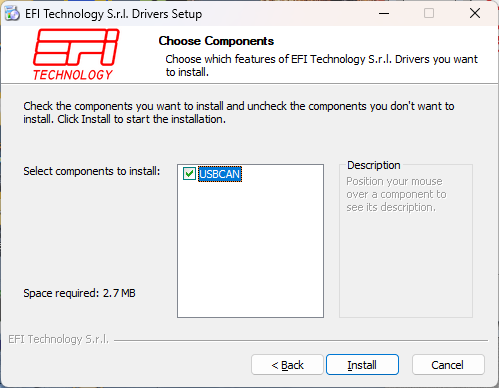
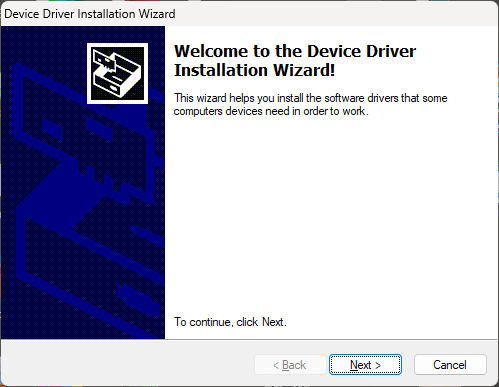
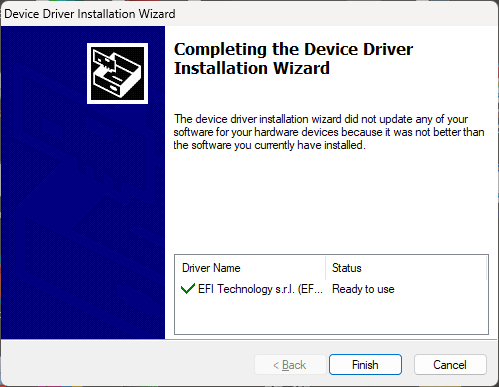
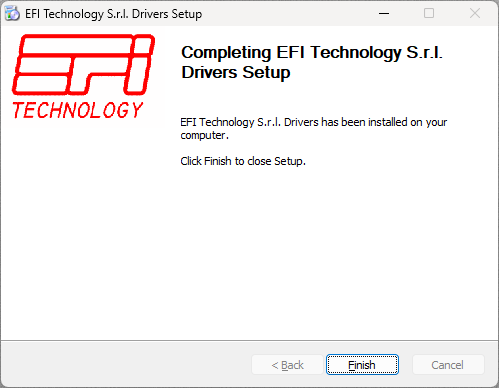
At the end of the installation press Next
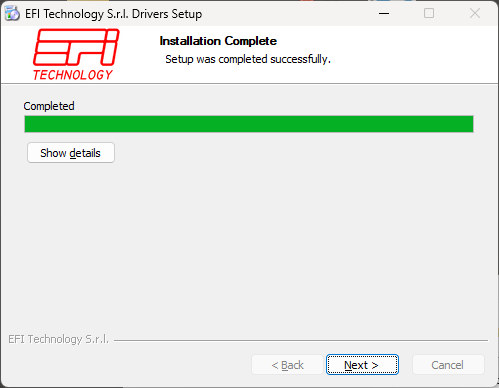
Press End to exit
ECUCommServer installation.
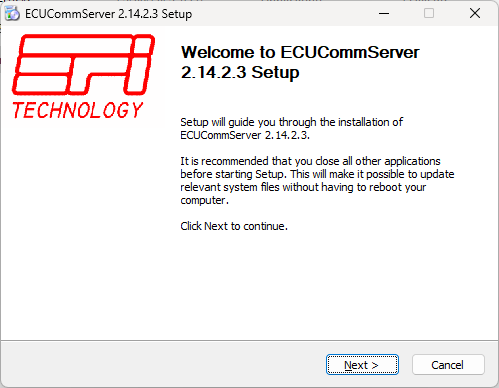
Accept the license conditions and then press Next
Optionally view the release notes and then press Next
Optionally, add a desktop shortcut and then press Next to start the ECUCommServer installation procedure
PseudoProgrammer installation.
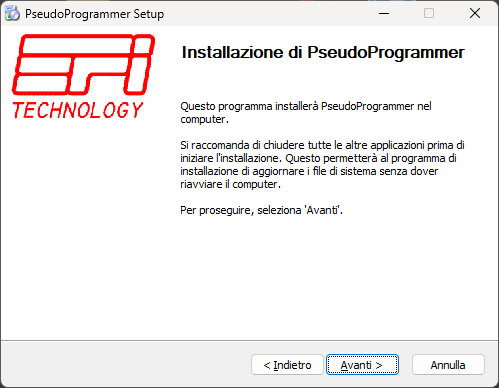
Choose freely the installation path, and click Install to execute the installation:
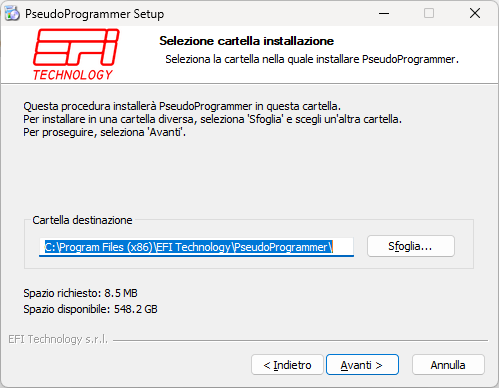
The window above shows also the software version that will be installed and the space required by the application.
ECT installation.
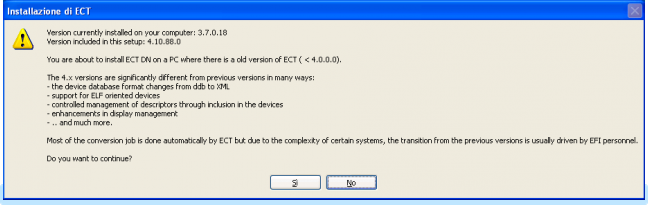
Choose the language and click OK. Depending on the version of ECT currently installed on your PC you could be warned about the problems you will have to face in the migration between the versions.
Agree the license agreement

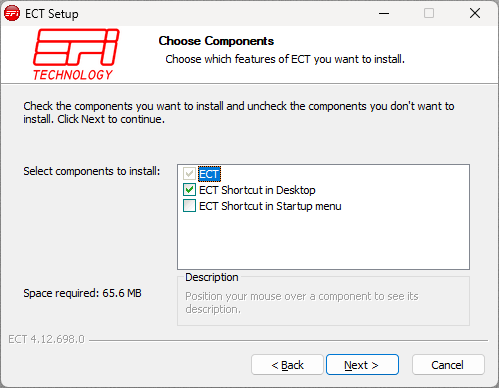
Tick ECT Shortcuts to display the ECT icon on the desktop, and click Next.
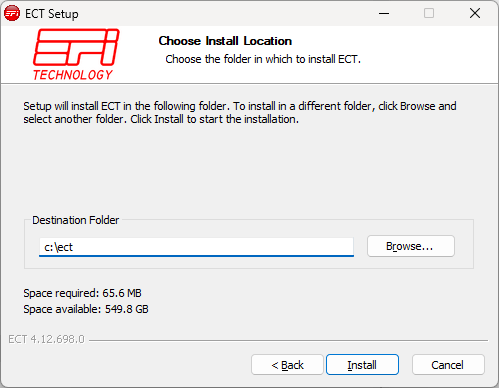
Choose as installation path the location of the current ECT (if present). If this is the first installation of an EFI tool, choose freely the path
When the installation is complete a tool version history is displayed.
Close it and then click Close.
USB CAN interface
Connect the USB interface to any of the USB port of your computer. It is a USB 1.0 device, and so it is compatible with all the ports including 2.0.
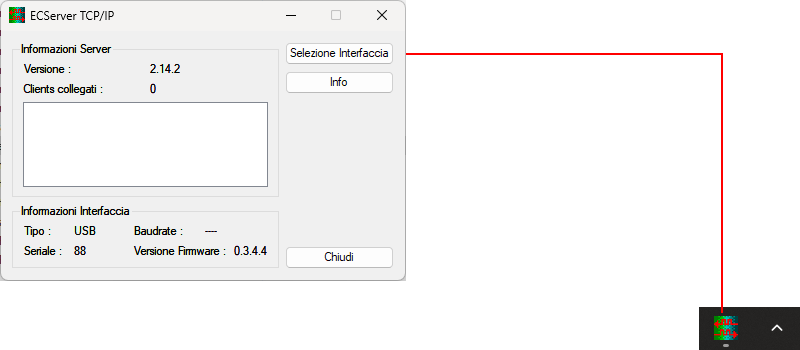
You can verify the interface functionality simply opening the ECUCommServer (double click on the ECSSever TCP/IP icon in the Windows application bar).
-
Server Information contains the version of the server, the number of connected clients and a list of connected clients (1 client connected in the above picture).
-
Interface Informationcontains the type of interface currently selected, its serial number, CAN baud rate and the interface firmware version.
All USB Interfaces provide the basic features necessary to program and communicate with EFI/Campi ECUs. These basic features can be upgraded with additional enhanced functionalities (i.e. ASAP3 communication, crypto functionality) by sending a request for the software upgrade to EFI Technology.
UPGRADE FROM OLDER VERSION
You do not need to uninstall previous versions of ECT. It is recommended to install the new version in the same directory as the old version.
UNINSTALLING ECT
IMPORTANT: The deletion of the ECT program only removed program files. It does not remove any maps, display screens or any other data files.